Delta Touch [10 x Doom engine]
Open Touch GamingAction
4.81.17K Reviews
- Version
- 7.1.1
- Installs
- 50.00K
- Age Rating
- Teen
Screenshots
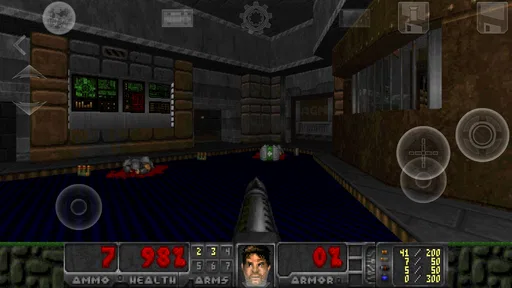
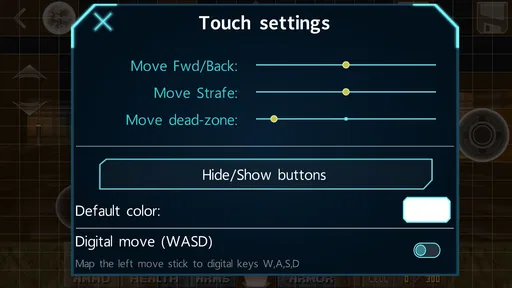
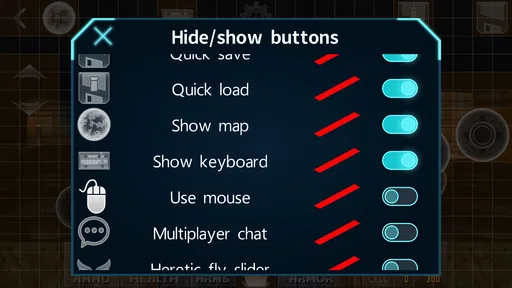
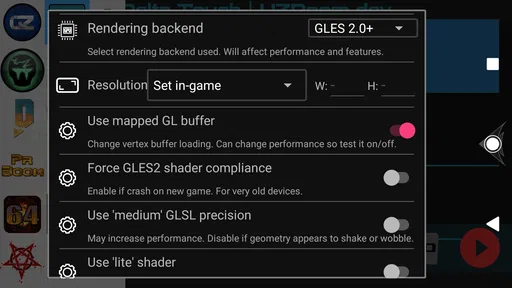
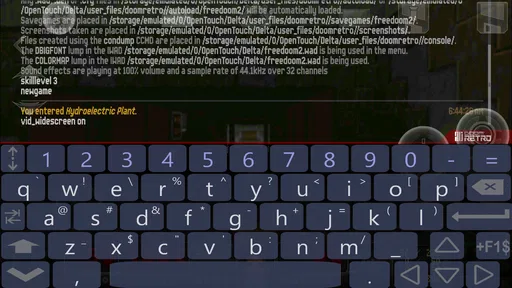
Our Review of Delta Touch [10 x Doom engine]
 Analysis by Appyee
I’d approach Delta Touch less like a single mobile shooter and more like a toolkit for playing Doom-engine games on a phone. That distinction matters: it suits someone who already enjoys choosing how a classic game should run, not someone expecting a polished, self-contained campaign to launch immediately. As an action game from Open Touch Gaming, it puts the appeal in flexibility and in making familiar, fast-paced play work with a touchscreen.
Who will get the most from the setup
If you already have Doom game files or enjoy exploring custom maps, the app has a clear purpose. It can bring those games to a mobile device and gives you a choice of compatible engines rather than insisting on one fixed presentation. The practical benefit is variety: you can keep a familiar classic setup for one session and try a different engine for another, instead of treating every map as if it must be played the same way.
That flexibility also comes with a small barrier to entry. A new player may install the app and still need to understand how to add and select game files before the fun begins. I’d check that you have the files you want to use and are comfortable organizing them on your device. If you want a game that opens straight into a supplied campaign with no setup decisions, a conventional standalone shooter is likely a better fit.
A repeatable routine makes mobile play easier
My preferred approach with a configurable port is to settle on one engine and one control layout first, then leave them alone for a few sessions. That gives you a fair sense of whether aiming, movement, and button placement work for your hands. Changing several options at once can make a level feel different without making it obvious which adjustment helped. A stable baseline is especially useful on a small screen, where muscle memory matters more than having every possible control visible.
For a short break, I’d pick a familiar level and use it as a quick check: can I move, turn, fire, and reach the actions I need without awkward thumb travel? If not, adjust the layout before starting a longer run. This is a more useful test than endlessly browsing settings, because the right arrangement depends on the device and the way you hold it. If you prefer physical controls, consider whether your usual setup is compatible with how you play; touchscreen flexibility cannot make every control preference feel equally comfortable.
What the choices mean in practice
Engine selection is more than a novelty. Different ports can prioritize different kinds of compatibility or presentation, so changing engines may affect how a particular game or map feels. I wouldn’t assume that the most feature-rich choice is automatically best for everything. When a level behaves unexpectedly, trying another suitable engine can be a sensible troubleshooting step, but it is better to change one variable at a time and remember what you changed.
The same restraint applies to visual and sound adjustments. It’s tempting to chase a perfect modern-looking image, but a clean, readable view can be more helpful during quick combat than a collection of effects. Likewise, sound can add atmosphere, yet a loud soundtrack may make it harder to notice the game’s own audio cues. I’d tune for clarity first, then add the style you enjoy once the controls and performance feel right.
Where it sits beside other mobile action games
Compared with a typical mobile action game, this is less about unlocking a new progression system and more about bringing existing Doom-engine play to a portable screen. The payoff is freedom to choose content and engine; the trade-off is that you take on more of the setup and decision-making yourself. That makes it a stronger choice for fans who like classic shooters, custom content, and a little configuration than for players who want a guided onboarding flow or a self-contained modern campaign.
It is also a paid app, priced at $2.99, rather than a free download built around persuading you to keep returning. I see that as a straightforward exchange if you expect to use its engine options and bring your own compatible content. If you only want to try one brief retro shooter session and do not already have game files in mind, the cost and setup may be harder to justify. Its Teen age rating is another useful point for households checking suitability before installing.
Getting Started: Easy Peasy
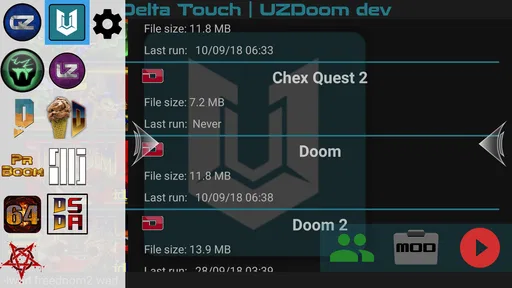
First things first, let’s talk about the installation process. It’s as smooth as butter. You can find the app on both Android and iOS, so no one’s left out of the fun. Once you’ve downloaded it, get ready to dive into a world of nostalgic chaos. The app supports multiple Doom engines, making it super versatile. You can bring in your own WAD files, which basically means you can play the original Doom levels or any custom maps you’ve got lying around.
Gameplay: Old School Meets New School
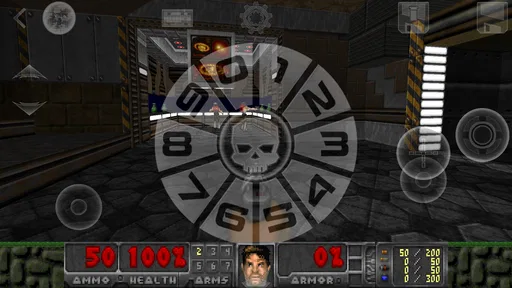
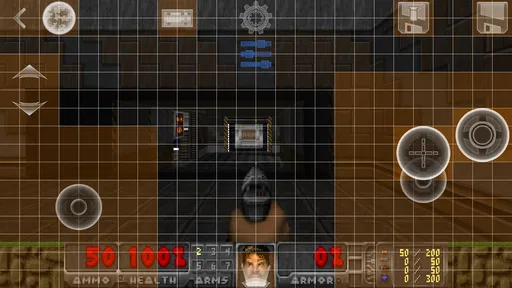
As soon as you fire up the game, you’re greeted with graphics that scream retro. But don’t let that fool you—there’s a modern twist. The controls are surprisingly intuitive for a mobile game, and you can customize them to fit your style. I personally love tweaking the layout to match my thumbs’ mood.
The app’s interface is super clean, making navigation a breeze. You can switch between different engines like GZDoom, Chocolate Doom, and more with just a tap. Each engine offers a unique experience, so there’s always something new to try. It’s like having a buffet of Doom right at your fingertips.
Performance: Smooth Operator
One of the most impressive aspects of Delta Touch [10 x Doom engine] is how smoothly it runs. Even on older devices, the app performs like a champ. There’s no lag or stuttering, which is crucial when you’re trying to survive the hellish landscapes of Doom. The developers clearly put a lot of love into optimizing this app, and it shows.
Battery life is another concern when gaming on mobile, but surprisingly, the app doesn’t drain your battery as fast as I expected. You can enjoy hours of demon-slaying without worrying about finding a charger.
Customization: Make It Your Own
For those who love to tinker, Delta Touch offers tons of customization options. You can adjust the graphics, sound, and controls to your heart’s content. Want a more authentic experience? Go for a classic pixelated look. Prefer smoother graphics? You can do that too. The sound settings let you immerse yourself in Doom’s eerie atmosphere, or you can crank up the volume and blast through demons with a heavy metal soundtrack.
- Adjustable graphics settings
- Customizable controls
- Multiple sound options
Multiplayer: Because Friends Who Doom Together, Stay Together
What’s better than battling demons alone? Doing it with friends! Delta Touch has multiplayer support, so you can team up with your buddies and take on the forces of hell together. It’s a fantastic way to relive those LAN party days or just have a blast with friends across the globe.
For an everyday routine, I can see it working well as a quick lunch-break game once the initial setup is done. Keep a known WAD ready, use the control layout you’ve already practiced, and choose a level you can comfortably leave and return to. That avoids turning a ten-minute pause into a file-management session. It also makes the app a nice travel companion for players who want a compact classic shooter, though long sessions are still more comfortable with a grip and a screen size that suits your hands.
Settings and shortcuts worth learning
The best customization is not necessarily the most elaborate. I’d prioritize placing movement and firing where your thumbs naturally rest, then keep less-used actions within reach without crowding the view. If you keep missing a button during combat, move it rather than trying to train around a poor layout. Once it feels right, resist the urge to redesign it for every game; consistency makes switching between maps less distracting.
A useful habit is to note which engine and settings you used for a game that runs well. If you experiment later and something feels off, you can return to that baseline instead of starting over. This is especially valuable when comparing engines: test the same short section with the same control layout, and change only the engine. That gives you a clearer impression of compatibility and feel than switching engines, graphics, and controls all at once.
Likewise, treat custom content as something to organize rather than pile into one confusing folder. Keep track of which files belong together and confirm you have selected the intended content before launching. That small bit of housekeeping can prevent a frustrating start when you just want to play. It also helps if you keep more than one kind of Doom experience on the device and want to return to a particular setup later.
Limits to keep in mind
This is still a touchscreen adaptation of a game style designed around quick movement and aiming. Custom controls help, but they cannot guarantee the precision or comfort of a keyboard, mouse, or controller for every player. If you are sensitive to small-screen aiming or dislike virtual buttons, test a short session before committing to a long campaign. A tablet may give you more room, while a smaller phone can be more convenient to carry; neither automatically solves the control trade-off.
There is also a difference between owning a port and having every game ready to play. The WAD workflow means your experience depends on bringing in compatible content, so the app is not the easiest recommendation for someone who has never dealt with game files. I would not buy it expecting a curated catalog to remove that step. The appeal is control over how you play, and that freedom asks for a little patience in return.
Engine choice can be a strength, but it can also create decision fatigue. If you are not interested in comparing behavior or adjusting a setup, having several options may feel like extra work rather than a bonus. I’d pick a sensible starting point, confirm that the content launches, and only investigate alternatives if you have a specific reason—such as a preference for a different presentation or a map that does not behave as expected.
Who should install it—and who should pass
I’d recommend Delta Touch to Doom fans who already own or have access to compatible files, enjoy custom maps, and want a portable way to revisit them. It also makes sense for curious players who are willing to learn a straightforward file workflow in exchange for engine choice and control over presentation. The 4.8 average from around 8.8 thousand ratings and more than 50 thousand installs suggest that it has found an audience, while the roughly 1.2 thousand written reviews give prospective players more than a handful of reactions to consider.
I’d steer away from it if your priority is a free, instant-play action game, a tightly guided first-time experience, or console-like controls without any setup. It is also a poor match if file handling feels like a chore or if you want every session to be a fresh, self-contained campaign. In those cases, a conventional mobile shooter may be easier, even if it offers less freedom to choose engines and classic content.
Mastery verdict: flexibility with a learning curve
Released on January 27, 2018, and now at version 7.1.1, this action game is best judged by how much you value its particular kind of flexibility. The most satisfying approach is to establish a dependable setup, learn one engine well enough to stop second-guessing it, and then explore other options only when a game or personal preference gives you a reason. That turns a menu of choices into a useful tool rather than a distraction.
For me, the strongest case for it is simple: it can make a familiar style of shooter feel portable without forcing every player into the same layout or engine. Its main costs are money, file setup, and the compromises of touchscreen play. If those are acceptable, I think it offers a rewarding way to keep classic Doom-engine games close at hand. If you want instant convenience above all else, a less configurable game will probably suit you better.
Final Thoughts: A Must-Have for Doom Enthusiasts
In a nutshell, Delta Touch [10 x Doom engine] is a dream come true for any Doom fan. It captures the essence of the classic game while adding enough modern touches to keep things fresh. The app is user-friendly, performs brilliantly, and offers endless customization. Whether you’re a seasoned veteran or a curious newcomer, this app is a fantastic way to experience Doom on mobile.
So, if you’re ready to dive into the demon-filled world of Doom, grab Delta Touch [10 x Doom engine] and get ready for some heart-pounding action. Trust me, you won’t regret it!
Verdict
Strengths of Delta Touch [10 x Doom engine]
- Supports multiple Doom engines for flexibility.
- Highly customizable controls and settings.
- Active community with mods and support.
- Smooth performance on most devices.
- Regular updates with new features.
Limitations of Delta Touch [10 x Doom engine]
- Steep learning curve for new users.
- Complex setup for non-tech savvy users.
- Some features locked behind paywall.
- Occasional compatibility issues with mods.
- Limited support for older devices.
Similar Picks in This Category
View All
Temple Run 2: Endless Escape
Imangi Studios4.1

PUBG MOBILE
Level Infinite4.3

Free Fire: 9th Anniversary
GARENA INTERNATIONAL I4.4

Talking Tom: Hero Dash Run
Outfit7 Limited4.3

slither.io
Lowtech Studios3.9

Sniper 3D:Gun Shooting Games
Wildlife Studios4.6
Frequently Asked Questions
What is Delta Touch [10 x Doom engine] and what does it offer?
Delta Touch is an app that brings the classic Doom experience to mobile devices by utilizing multiple Doom engines. It supports a variety of mods and offers enhanced graphics and performance options, allowing players to customize their gameplay. It's perfect for fans of the original Doom series looking to relive or enhance their experience on Android devices.
How do I install and set up Delta Touch on my device?
To install Delta Touch, download it from the Google Play Store. Once installed, you need to provide your own legally obtained Doom game files (WADs). The app will guide you through setting up these files. It supports a wide range of Doom engines, ensuring compatibility with various mods and expansions.
What devices are compatible with Delta Touch?
Delta Touch is designed for Android devices. It requires a device running Android 4.1 or higher. While it works on most modern smartphones and tablets, for the best experience, a device with a good GPU and at least 2GB of RAM is recommended to handle the intensive graphics and mods efficiently.
Can I use mods with Delta Touch, and how does it enhance gameplay?
Yes, Delta Touch supports a wide array of mods. Users can load custom WADs and mods to alter gameplay, graphics, and even sound. This flexibility allows players to experience Doom in new and varied ways, offering endless replay value by customizing the game to their liking with different mods and enhancements.
Is Delta Touch a free app, and are there any in-app purchases?
Delta Touch is a paid app available on the Google Play Store. It does not include in-app purchases, meaning once you purchase the app, you have full access to all its features without the need for additional payments. This one-time purchase provides a comprehensive Doom experience on mobile.
Play our best games!


